

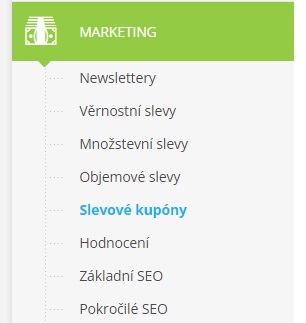
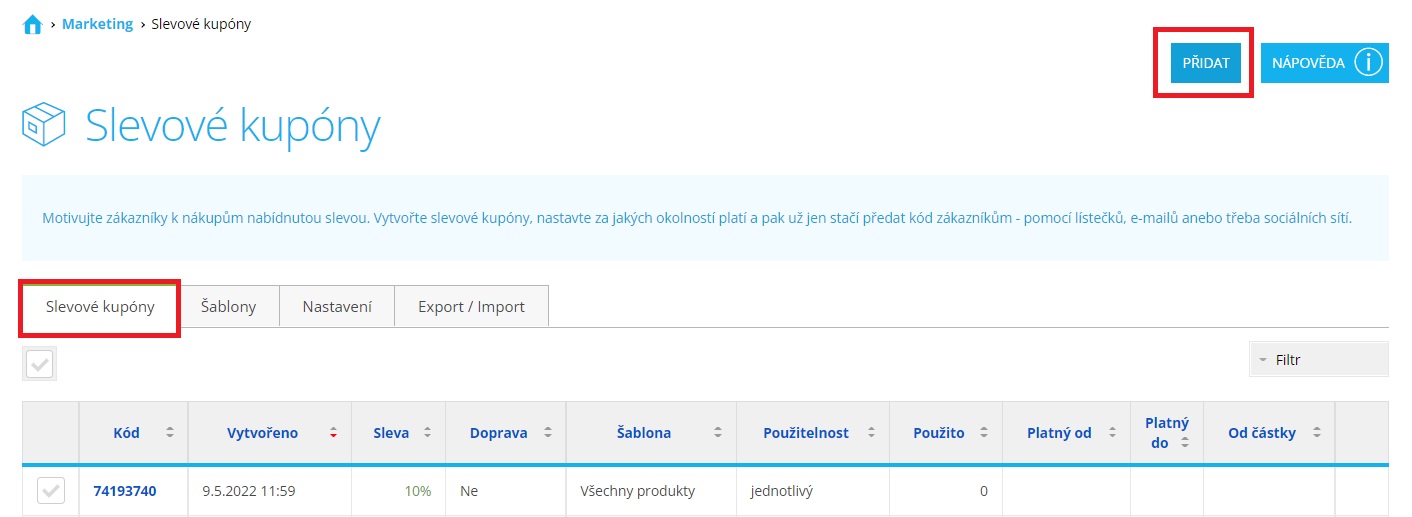
Log in to the e-shop Administration. In the left-hand menu, expand the Marketing category and select Discount Coupons.
Creating a Discount Coupon Template
If you want to use discount coupons in Incomaker for multiple campaigns, it is a good idea to generate each set into a separate coupon template. In the Templates tab, click the Add button.
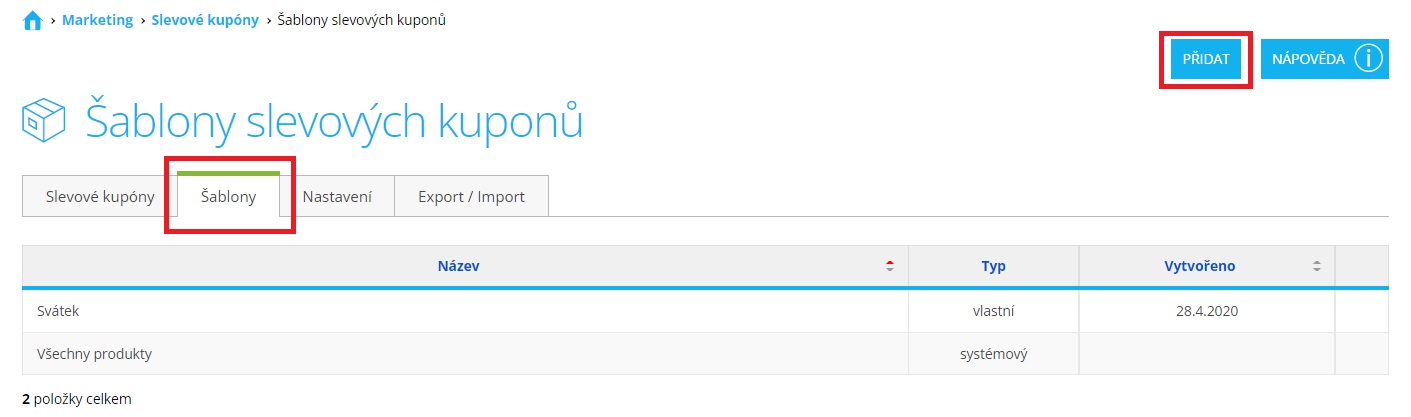
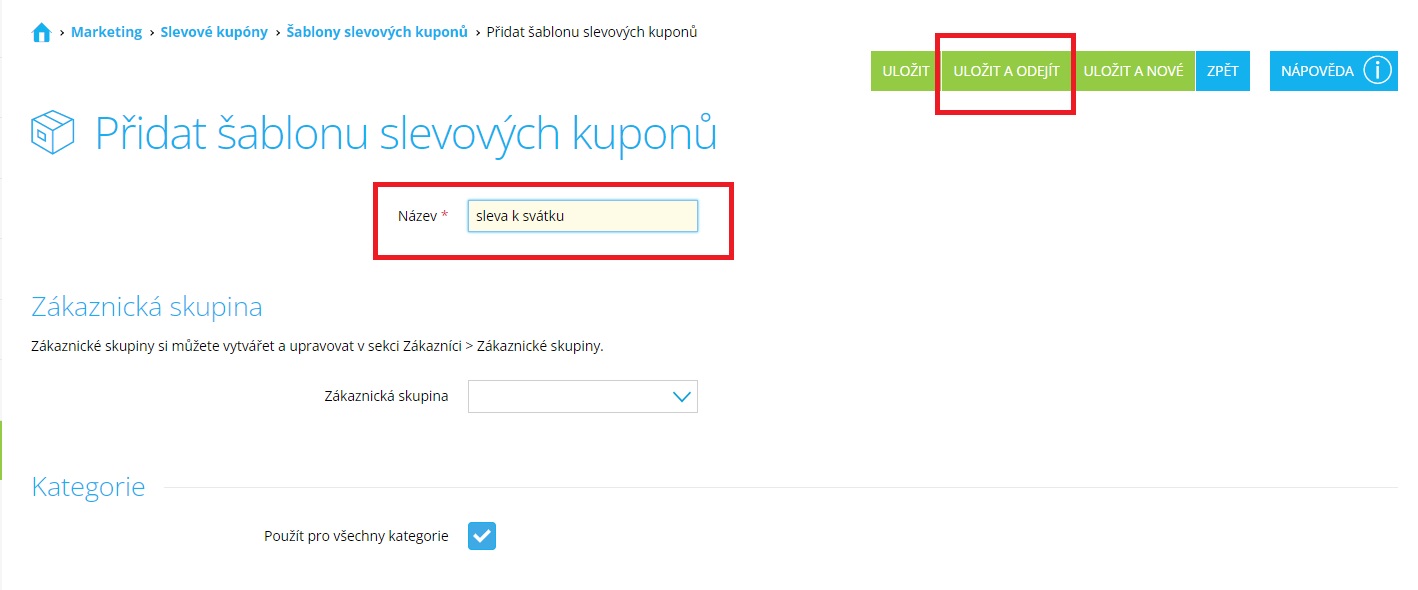
The most important field to fill in is Name – this is the name under which you will find the corresponding coupon set in Incomaker.
You can also configure additional parameters, such as whether the coupons in this set should be valid for products in all categories or be available only to specific customer groups.
Once you have configured the desired settings, click Save and Exit.
Configuring Coupons Generated Through Incomaker
The advantage of this setup compared to generating coupons in Shoptet is, for example, that the number of generated coupons is not limited to 999, so you can also send large campaigns with discount coupons.
Another advantage is that we request coupon generation at the moment the campaign is sent, which makes it possible to set the validity of the discount code even for holiday campaigns or campaigns that react to an event (typically sending a discount code after subscribing via a pop-up).
In Incomaker, click the gear icon, select General Settings, and then go to Coupons. Stay in the Coupon Types tab.
We take coupon names from Shoptet, so you will find, for example, a coupon such as “birthday discount”. Coupon updates from Shoptet usually happen overnight, so if you cannot find a coupon type that you created in Shoptet, either wait until the next day or contact support, where they can refresh it manually.
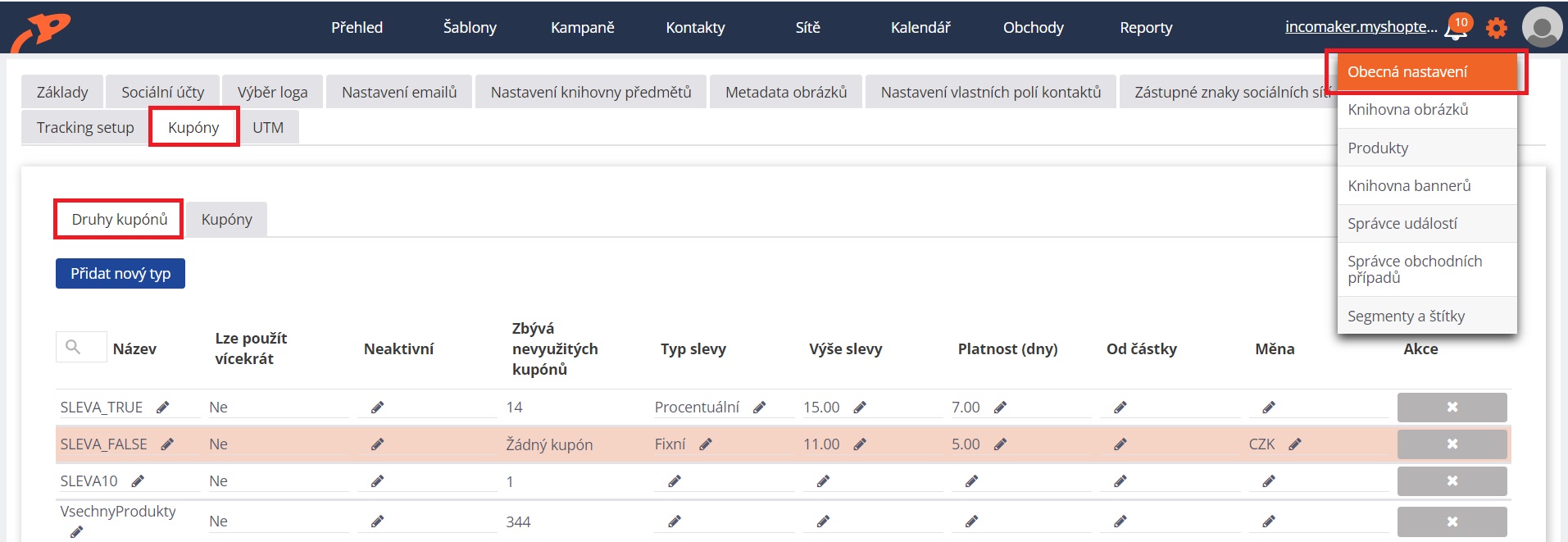
Here you set the discount conditions in the same way as in Shoptet. It is mandatory to select the Discount Type and the Discount Amount. If you choose a Fixed discount type, you also need to select the currency. Once everything is set up, you simply need to insert the email variable for discount coupons into the relevant email template and set the campaign to be sent.
Generating Discount Coupons in Shoptet
Go back to the Discount Coupons tab and click the Add button.
Here the two most important things are: select the option Add multiple coupons and choose the corresponding template name from the Template dropdown. You can set the other parameters as you see fit, but for a campaign such as a birthday discount coupon, we recommend generating as many coupons as possible (Shoptet allows a maximum of 999) and not setting an expiration date (since the coupons will be sent out gradually and the validity would otherwise be tied to a specific date). On the other hand, if you are running, for example, a weekend promotion and sending coupons all at once in a single campaign, it is better to set an expiration date. If you want each coupon to be redeemable only once, do not select the Multiple use option.
Once you have configured the parameters, click Add.
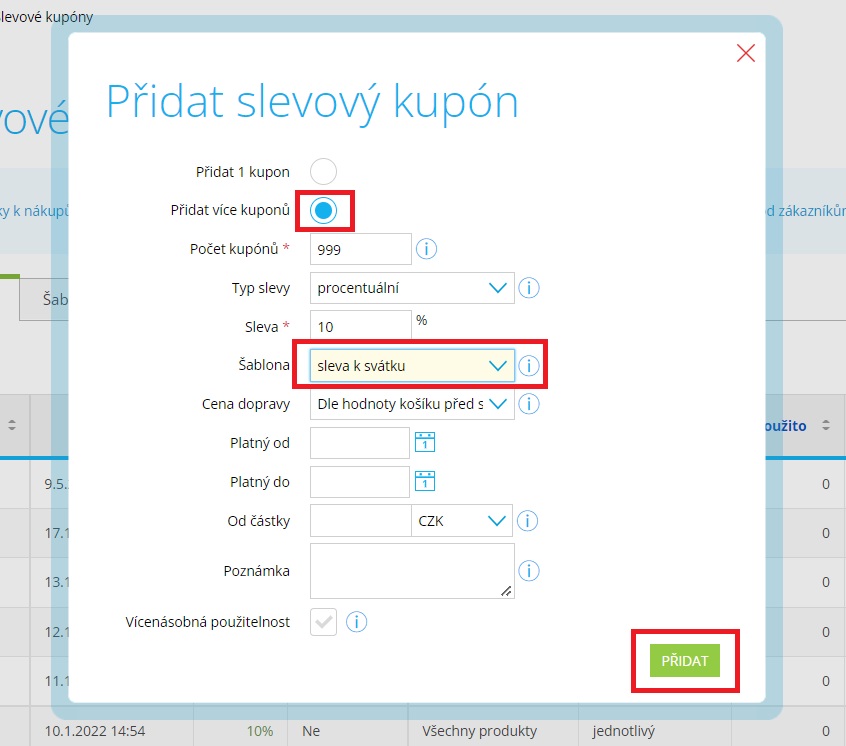
That’s it, the coupons will be generated, we will automatically download them into Incomaker, and all that’s left for you is to insert the email variable for discount coupons into the relevant email template.
Since Shoptet limits coupon generation to a maximum of 999 coupons, sooner or later you will need to generate new ones; otherwise, the campaign in Incomaker will stop working. Once there are only 50 coupons left that can be sent, you will receive an email notification informing you that you need to generate additional discount coupons and indicating which campaign is running low. You can generate them again simply by repeating the steps under Generating Discount Coupons.