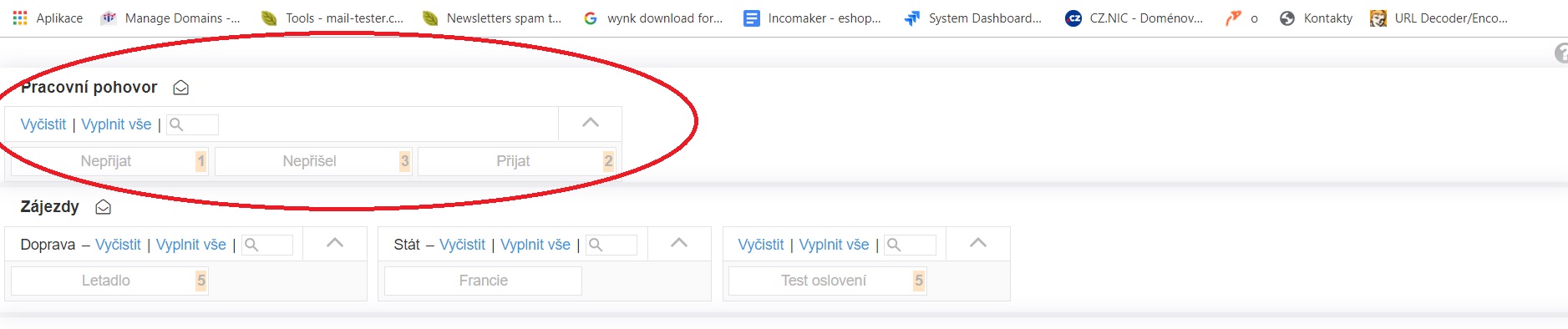
If you need to upload contacts that you already have in the Incomaker database, you can either filter the contacts you are looking for via Bulk Edit Contacts or add them to a new distribution list when you import them.
Suppose you have a mailing list category “Job Interview” and a mailing list in it called Accepted. You have a list of contacts that you want to add to this list, but you also have Not Accepted and Not Received contacts in this list. You can import them all at once.

File Prepapration
First, edit the file you want to import into Incomaker. Every contact you want to include in a mailing list must have this information with it. If you want to add contacts to an existing list (Received), the fields in the excel spreadsheet must be named exactly the same. If it is named differently, a new mailing list will be created.
Import
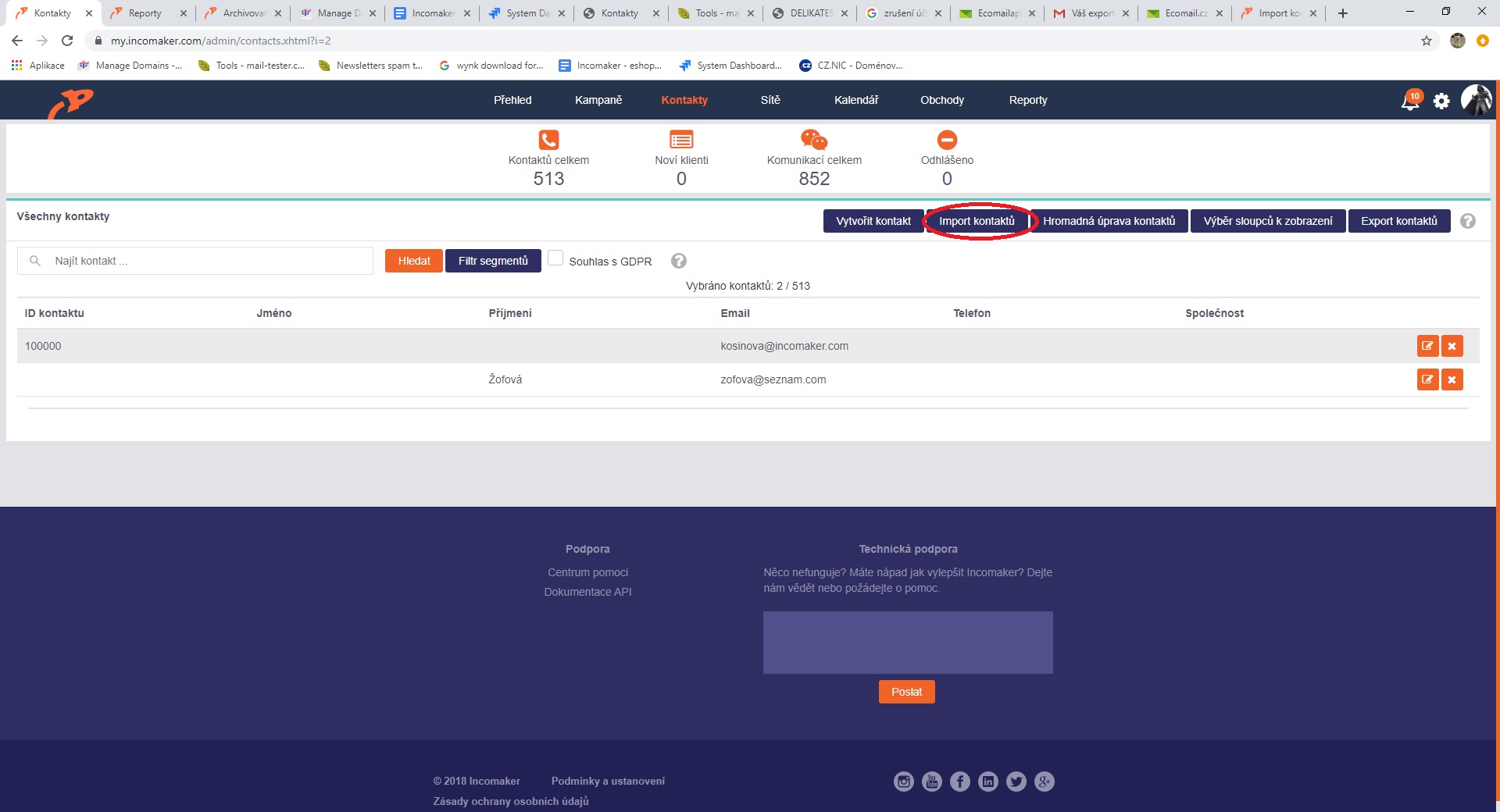
In Incomaker, under the Contacts tab, click the Import
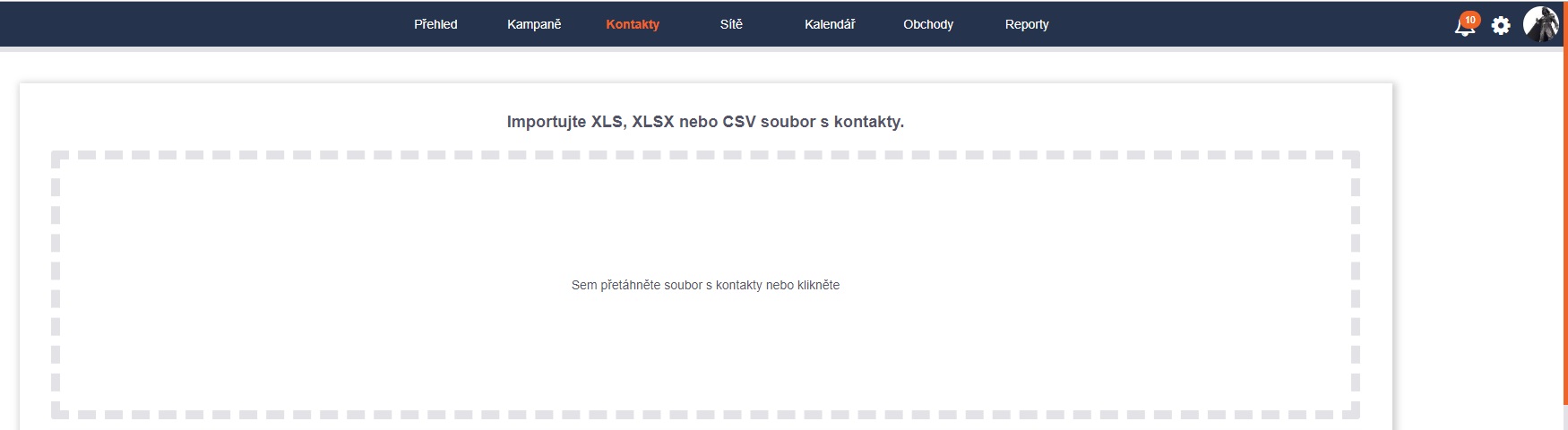
Either drag and drop the downloaded file into the import box or click, locate the file on your computer and open it.
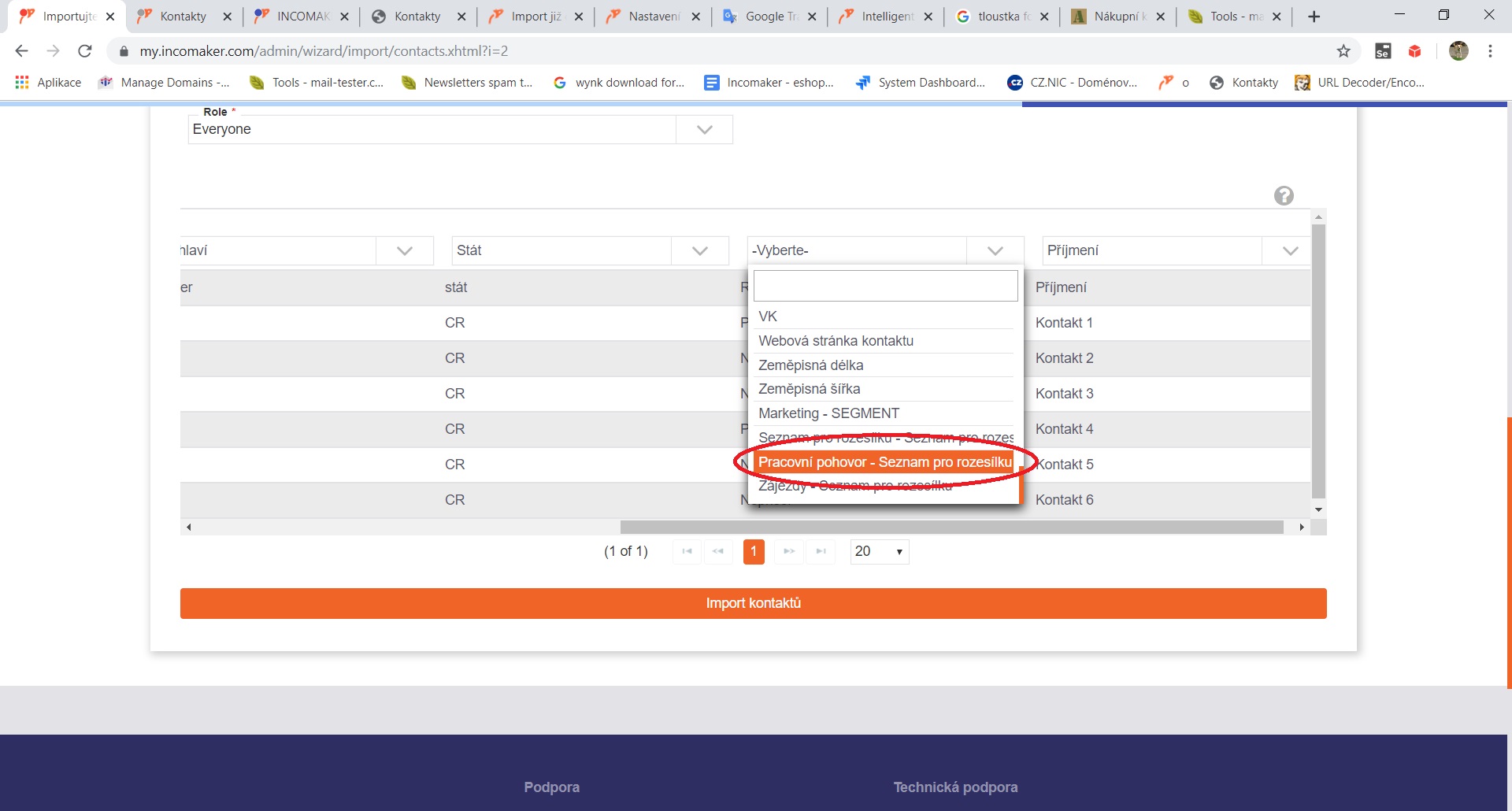
The contacts you want to import are loaded. Choose a contact identifier – in this case, email – and name the columns of the imported file according to the fields in the contact’s tab so that the information will match correctly. For the column where you have segmented the contacts by Accepted x Not Accepted x Not Accepted, choose the name of the mailing list category – i.e. Job Interview.
Import dokončíte kliknutím na tlačítko Import kontaktů.
To complete the import, click on the Import contacts button.
In the contacts report you can then see that the contacts that were marked as Accepted have been assigned and two new mailing lists have been created.