

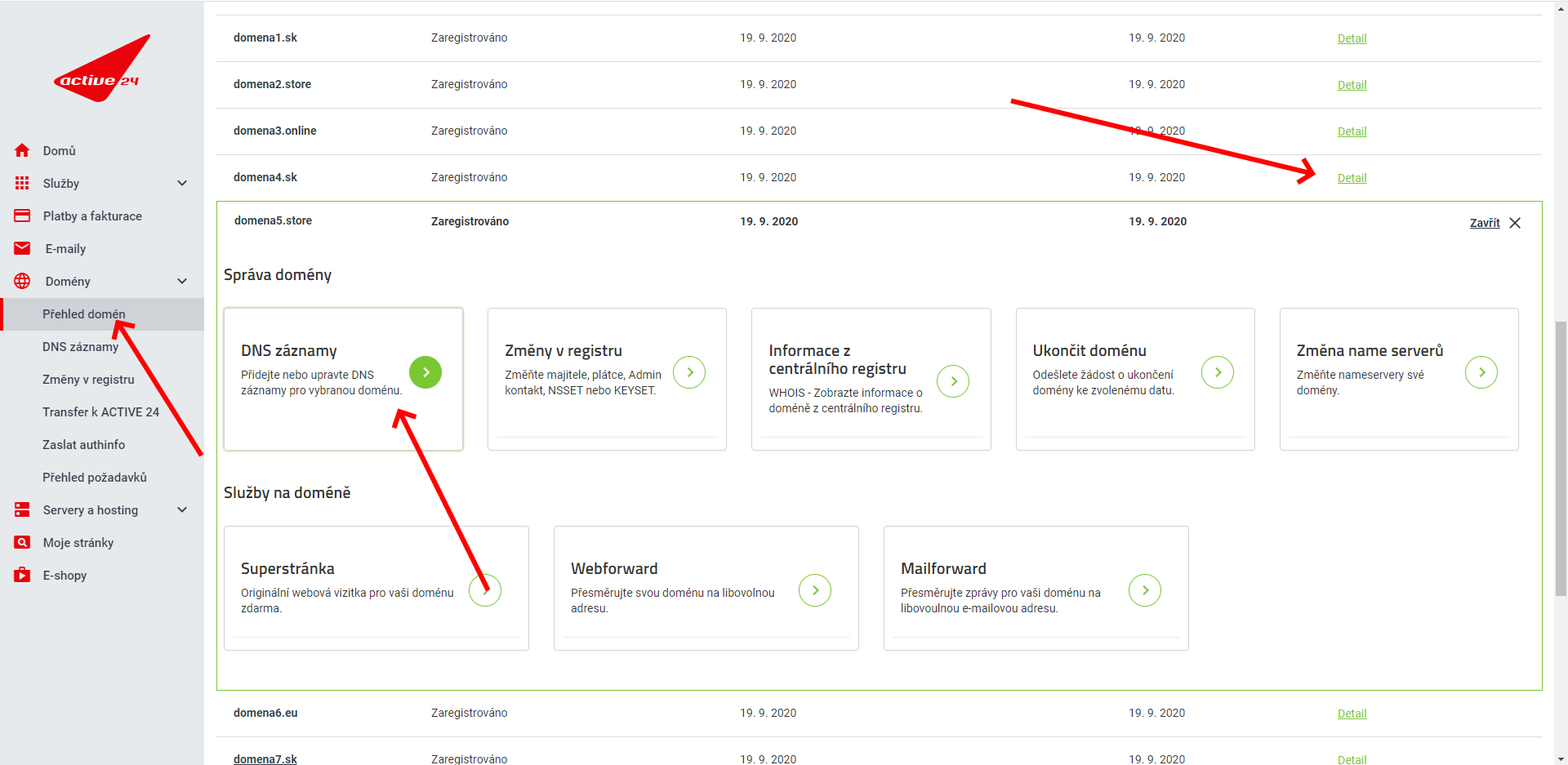
Log in to your account at customer.active24.com. In the left-hand column, click Domains and then Domain Overview, and on the right select the domain of your website or e-shop (click Detail). The Domain Management screen should expand, looking roughly like the example below. Then click DNS Records.
SPF
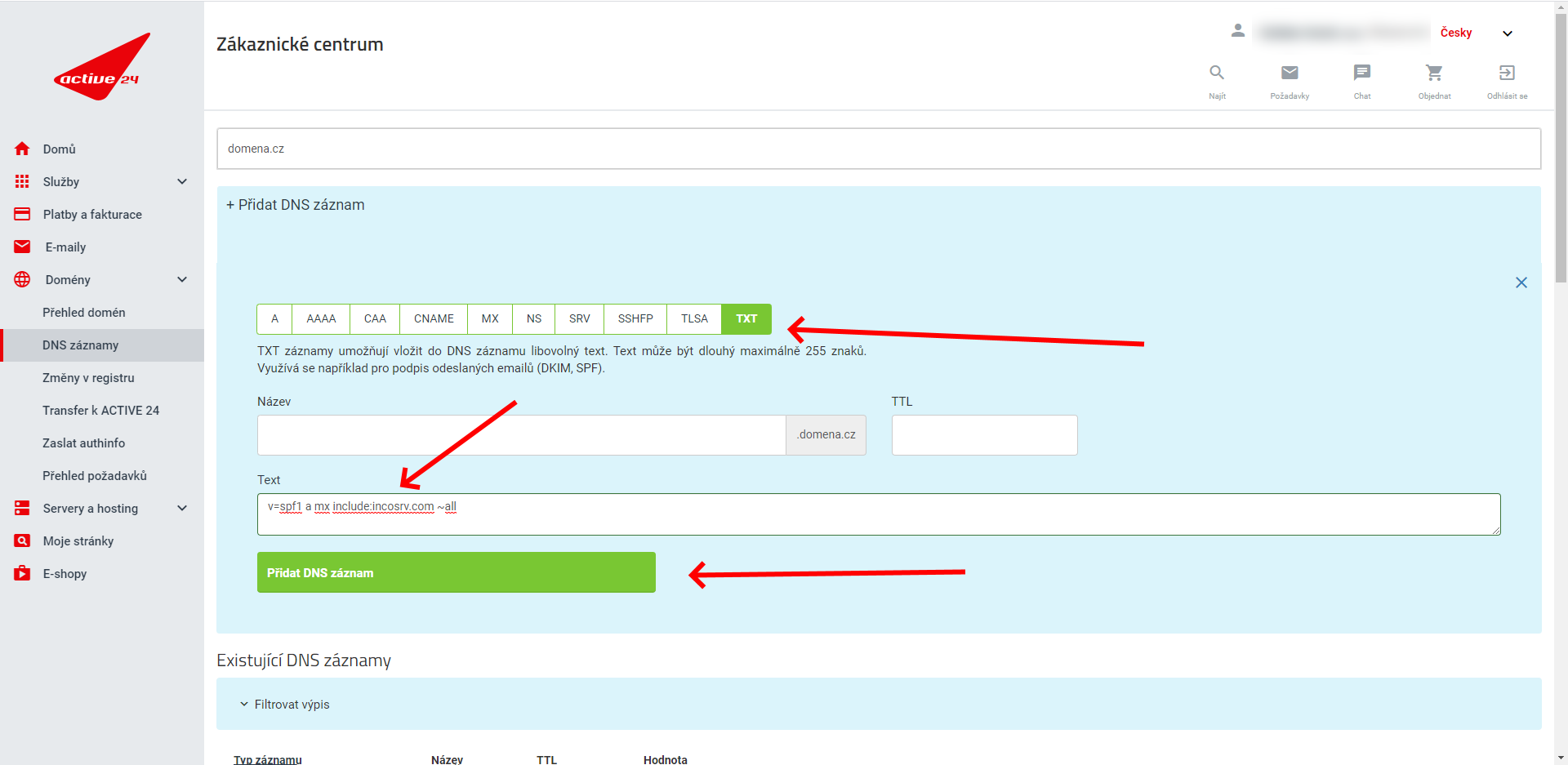
In the Add DNS Record section, click TXT and paste the following text into the Text field. Finally, click Add DNS Record.
v=spf1 a mx include:incosrv.com ~all
It may happen that a TXT record is already set up (for example, if you’ve previously used another email tool). You’ll recognize this if there’s an entry in the table below, in the Value column, that begins with Text: v=spf1. If that’s the case, click Edit on that row, and you can modify the record. All you need to do is insert the text include:incosrv.com anywhere except at the very beginning or the very end.
DKIM
Now you need to go into your Incomaker account, click the main Campaigns tab, and in the left-hand menu, click DNS Settings. An alternative route is via the Overview / My Designs / DNS Settings tab.
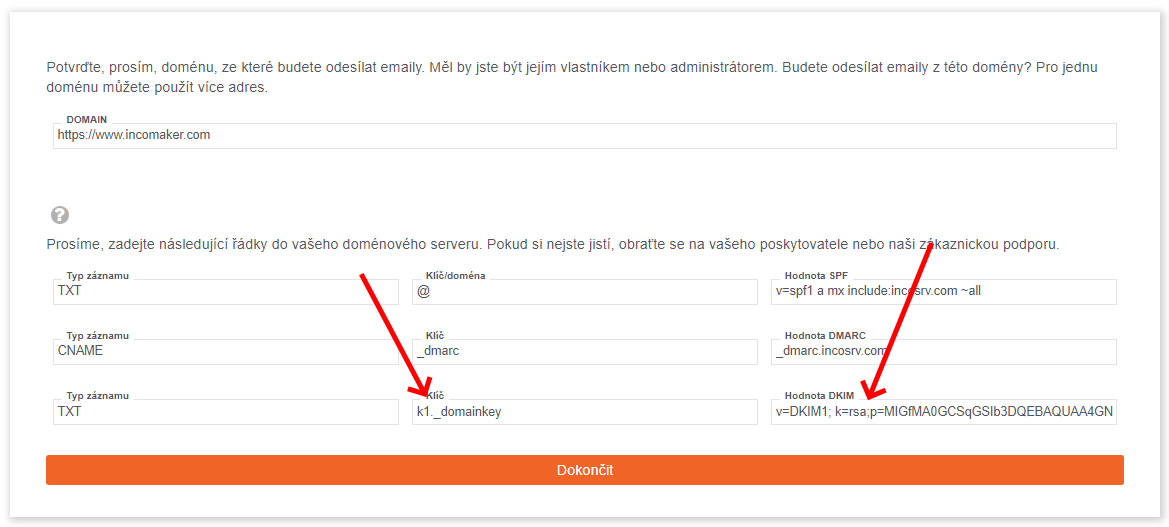
The row we’re interested in is the last one.
Switch back to Active24. In the Add DNS Record section, click TXT again. In the Name field, enter what’s shown in Incomaker’s Key field, and in the Text field, paste the text from Incomaker’s DKIM Value field. Finally, click Add DNS Record. Back in Incomaker, click Finish. The result should look roughly like the example below.
DMARC
In the Add DNS Record section, enter the following value into the Name field:
_dmarc
Into the Text field, paste the following and click Add DNS Record. Another record will appear on the screen.
v=DMARC1; p=none; sp=none; rua=mailto:postmaster@incosrv.com; ruf=mailto:postmaster@incosrv.com; rf=afrf; pct=100; ri=86400