Some UTM tags are added to each link automatically in Incomaker.
Specifically, the following tags will be added to any email, SMS or social media campaign send out:
- utm_source (Incomaker)
- utm_medium (by campaign type)
- utm_campaign (campaign name)
Editing UTM tags
If you want to set different UTM tags, click on the UTM tags button in the specific campaign and overwrite the pre-populated fields you want to change and save.
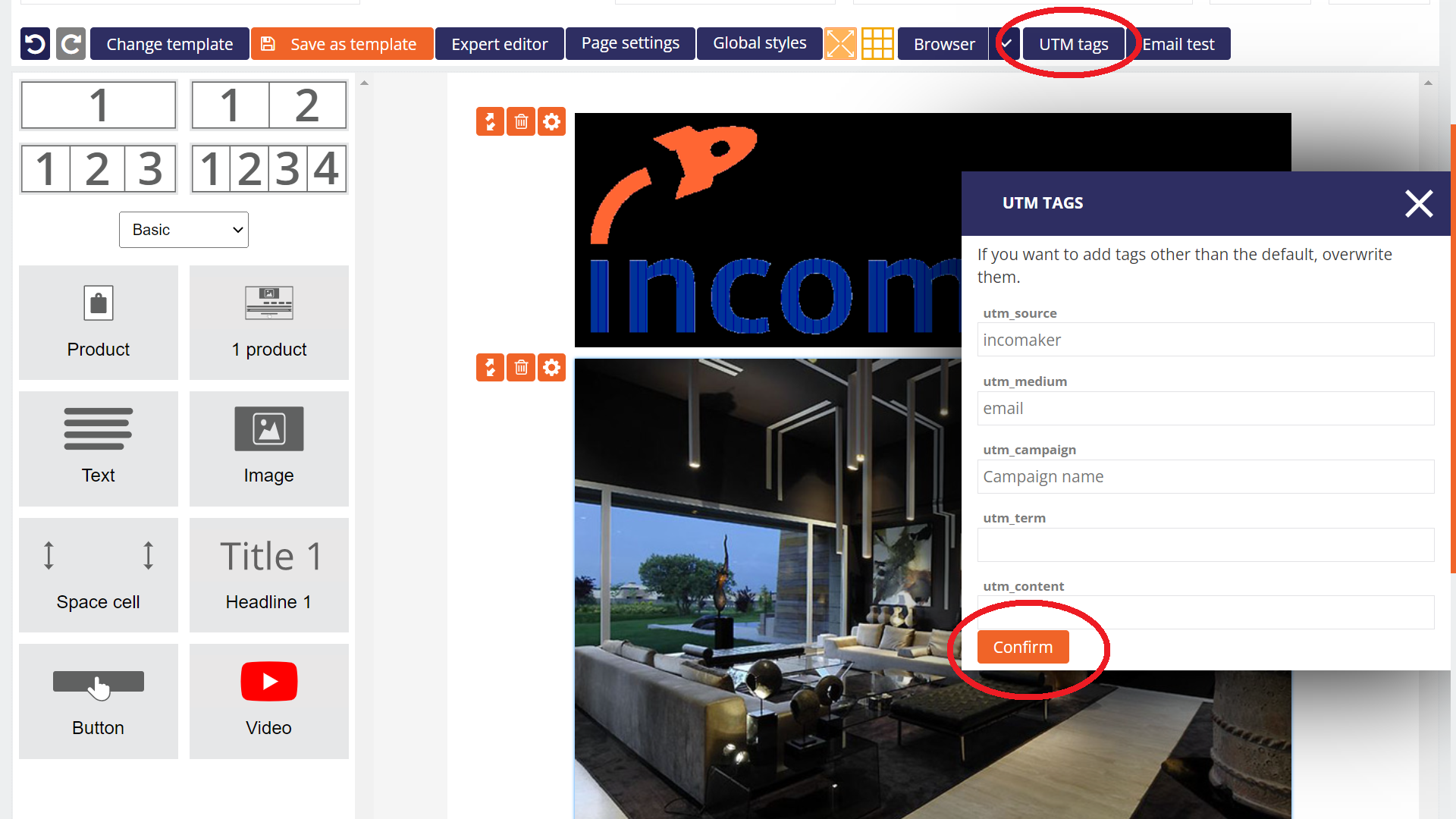
If you are making changes to an automated campaign, you need to save the campaign by clicking Finish.
Changes need to be made to all campaigns in which you want to use tags other than the default tags.
If you are using MS Exchange 2013, 2016 or Office 365 and you are sending mail from Incomaker, it may happen that the mail goes correctly to all recipients except your own domain. This is because MS Exchange, which is set up as your domain administrator, identifies mail from your domain sent from another server as phishing. In other words, if it receives an email from your domain but Exchange itself did not send it, it considers it a scam.
This problem does not affect all recipients, but only you as the domain owner. Ironically, your messages usually arrive normally to others.
There are of course general technologies, such as SPF, that solve this problem, but specifically for MS Exchange this is not enough and needs to be set up separately. Fortunately, this is easy to do.
The setup procedure is described e.g. in this tutorial. Add the following to the list of secure addresses:
85.255.14.56
85.255.6.181
85.255.2.199
85.255.2.213
194.182.86.249
80.211.218.150
80.211.218.51
195.181.208.57
“The ‘View in Browser’ link is an automatically generated link that you can add to an email, allowing customers to open the email in a web browser instead of an email client.
Insertion
In the template editor, under the Headers category, you will find the “Open in Browser” widget. Simply drag and drop it into the template where you want the link to appear.

Editing
After clicking “Open in Browser” directly in the template, the editing options will appear. You can change the text, font color, and font size, or even configure this component to be hidden on mobile devices.

If you encounter a discrepancy in the number of newsletter contacts between Incomaker and Shoptet, it’s important to understand how these systems work and how the contacts are acquired.
Why are there more contacts in Incomaker than in Shoptet?
Incomaker pulls contacts not only from those who have registered with your e-shop, but also from those who have placed an order with you but have not registered with your e-shop. This can lead to more contacts in Incomaker compared to Shoptet.
How do I address the issue of consent to receive the newsletter?
If you’re concerned about GDPR compliance when sending a newsletter to all contacts, it’s important to know that it’s not prohibited if you give them the option to unsubscribe. This is especially recommended for smaller databases.
However, if you only want to send the newsletter to customers who have explicitly agreed to it, you can create a list of these customers in excel to import into Incomaker, for example under the “Newsletter” list. This way you can easily distinguish customers who have agreed to receive the newsletter from the others.
This process will allow you to manage your contacts properly and only send newsletters to those who agree to it, while complying with GDPR regulations.
Emoticons (emoji) can be used to increase the attention of the target audience. This tool is ideal for marketing campaigns that target younger audiences who are used to using emojis in everyday communication.
Incomaker makes it easy to insert emoji into text via the EMOTICONS button, which is located next to the appropriate edit box, such as the subject line of an email. Clicking the button opens a panel of icons where users can choose from a wide variety of emoticons.
Although emoticons can increase the likelihood of an email being opened by 5-20%, it is important to use them in moderation. Too many emoticons can cause a post to become unreadable and thus counterproductive.

Incomaker also offers the ability to track how the use of emoticons affects the success of marketing campaigns. This allows marketing teams to optimize their strategies and achieve better results.
It’s important to note that although emoticons are technically standard text characters, their display can vary between systems. This means that the exact final form of emoticons may vary, although their meaning should remain the same.
Incomaker is therefore an ideal tool for those who want to harness the power of emoticons in marketing communications. It makes it easy to insert emoticons into text and track their effect on campaign success, giving marketing teams new opportunities to engage their target audience.