Do you want to insert banners into an automated campaign and don’t want to redo all the campaigns you use banners in every time? There’s nothing easier than setting up a banner campaign and the banners will add themselves when you submit the campaign. First you need to add at least one banner to your banner library and prepare one or more banner blocks in your campaign.
How do I add a banner block to my campaign?
You can insert a banner block when you prepare a template and use it in a campaign, or you can add it to an automated campaign that is already running. In the latter case, in the Campaigns tab, under the Ongoing column, select the campaign you want to add the banner block to, click the three dots icon and select Edit. The first step in editing a campaign is to edit the send time and reach of the campaign – you can skip this by clicking Next.

In the template editor, choose a category called Banners instead of the Basic category in the dropdown on the left.

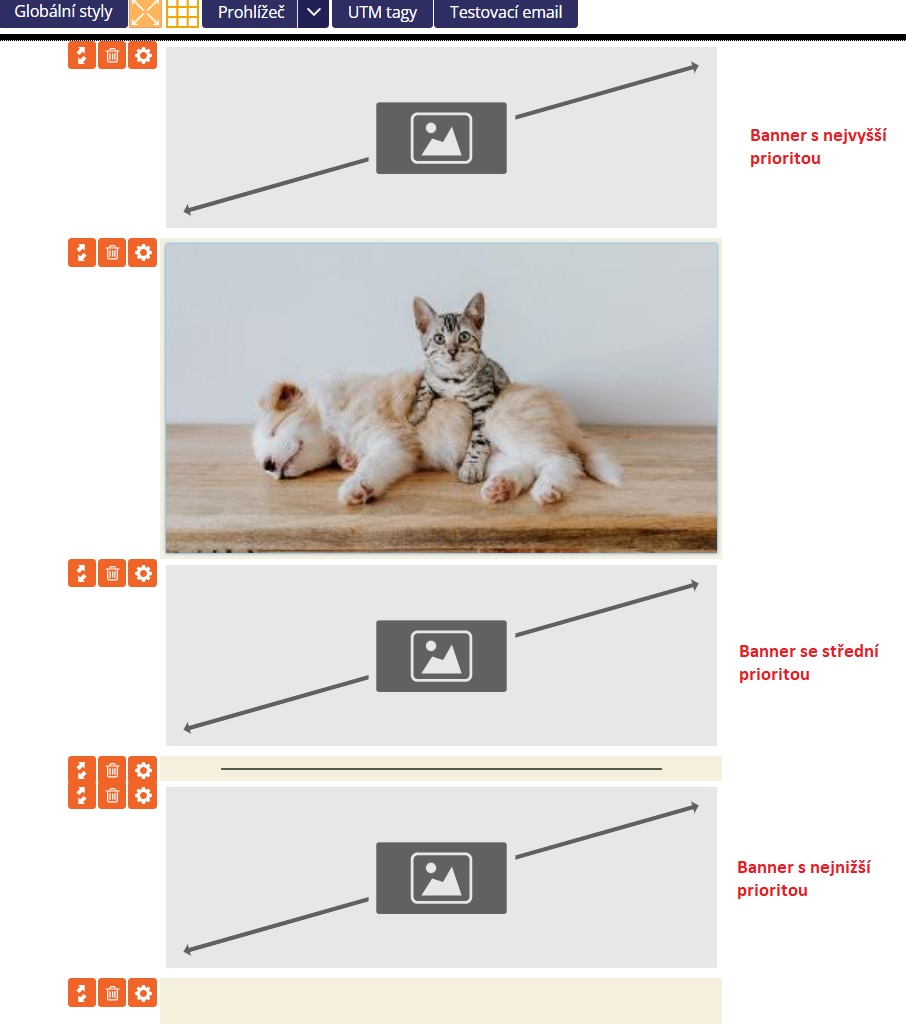
Drag the block for the banner to the desired location in the template. You can place multiple banner blocks in one template. In the example below, there are 3 banner blocks – these will be added according to the rules and priorities set in the Banner Library and Banner Campaign.
Confirm your changes to the campaign with the Save and Exit button.