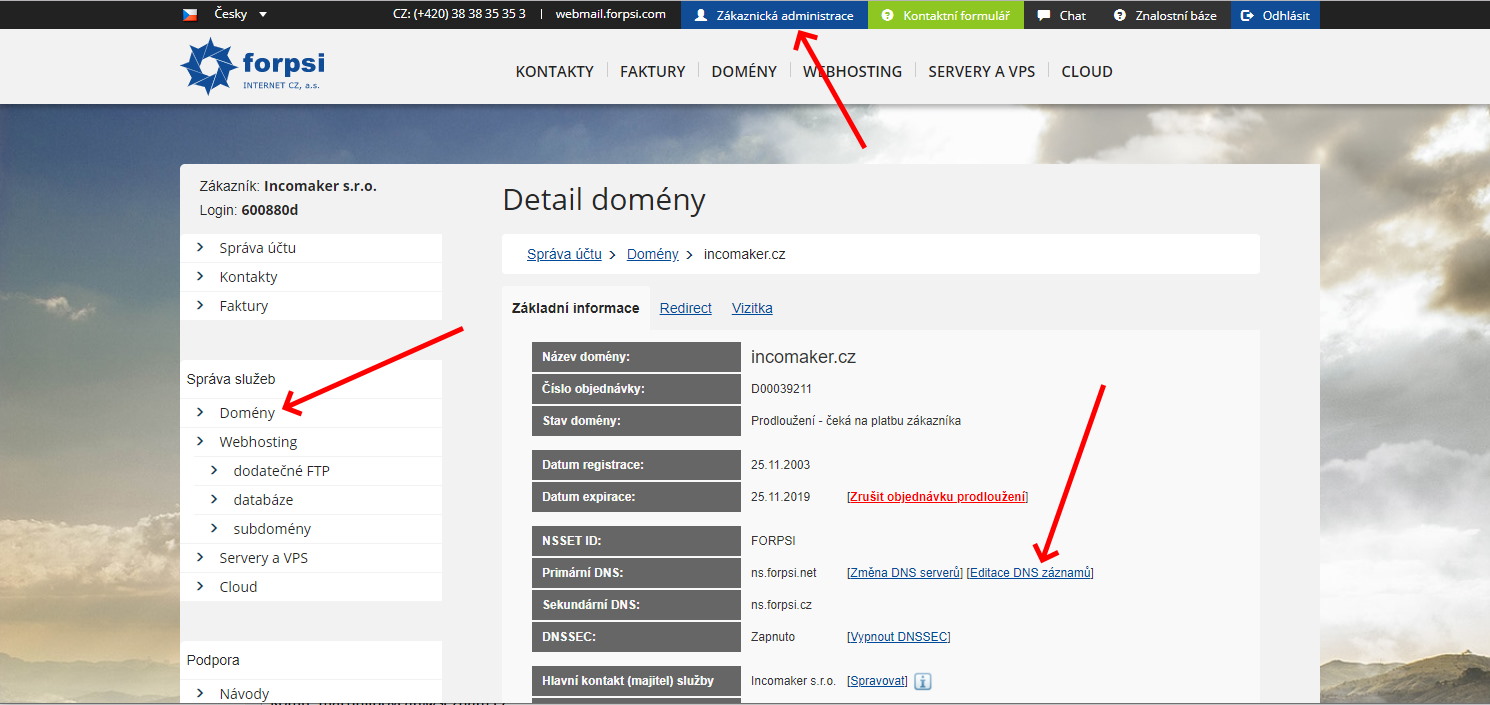
Log in to the Customer Administration. In the left-hand column, click Domains, and on the right select the domain for your website or e-shop. The Domain Details window should open and look approximately as follows. Then click Edit DNS Records.
SPF ( Sender Policy Network)
In the Type field, select TXT. Leave the Hostname and TTL fields unchanged. In the Value field, enter the following text. Finally, click Save.
"v=spf1 a mx include:incosrv.com ~all"
It is possible that a TXT record is already configured (for example, if you have previously used another email-related service). You can identify it by checking whether there is a record in the table below whose Value begins with v=spf1.
If this is the case, click Edit next to that record. You can then modify the record using the form above. Simply insert the text include:incosrv.com anywhere in the record except at the very beginning or the very end.

DKIM ( Domain Keys Identified Email)
Now you need to log in to your Incomaker account, click the main Campaigns tab, and then click DNS Settings in the menu on the left-hand side.
Alternatively, you can access it through Overview → My Suggestions → DNS Settings.
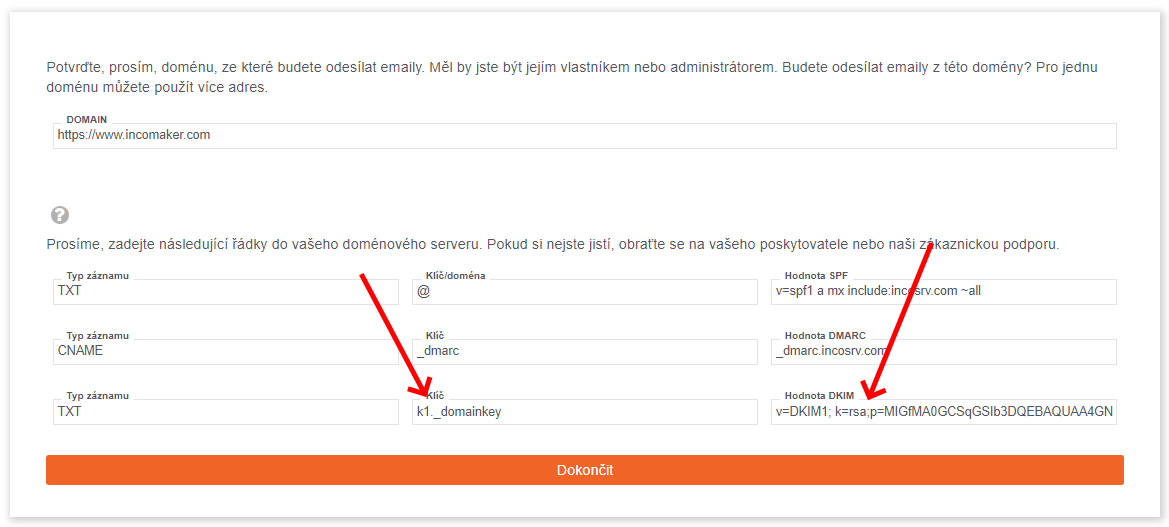
We are interested in the last row.
Switch back to Forpsi. In the Type field, select TXT. In the Hostname field, enter the value shown in the Key field in Incomaker. Copy the content from DKIM Value (in Incomaker) into the Text field (in Forpsi), then click Save.
In Incomaker, click Finish.
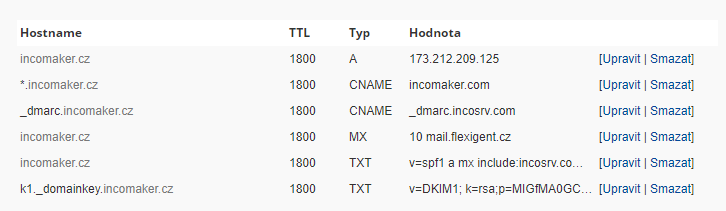
The result should look approximately as follows:
DMARC ( Domain Based Message Authentication, Reporting, and Conformance)
In the Type field, select TXT. This time, enter the following value in the Hostname field:
_dmarc
In the Value field, enter the following text and click Save. A new record will then appear on the screen:
v=DMARC1; p=none; sp=none; rua=mailto:postmaster@incosrv.com; ruf=mailto:postmaster@incosrv.com; rf=afrf; pct=100; ri=86400
The configuration is now complete. It may take some time for the changes to take effect, but within an hour you should be able to send emails securely without any issues.
If you are having trouble with the configuration, please contact our support team, for example through the chat in the bottom-right corner. We will be happy to assist you.